

Map View
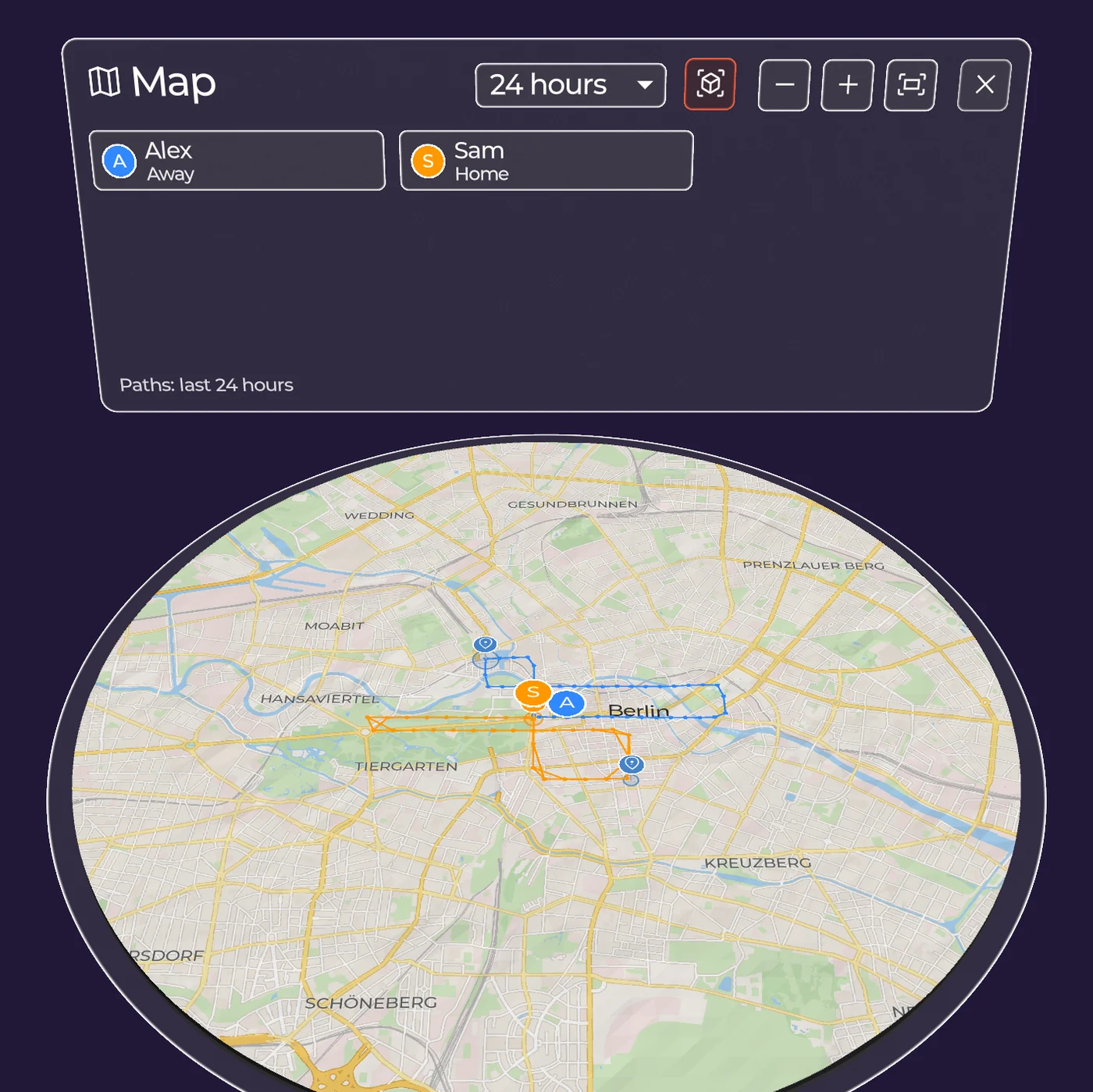
The Map View is a round map that lies in front of you like a table. It shows where everyone in your home is, and when you zoom in, your house as a small dollhouse with live lights, doors and temperatures. It replaces the Miniature View of earlier versions.
Opening the Map View
You can open and close the Map View by:
- pressing the B or Y button on a controller,
- pressing the map button at the top of the menu's side bar,
- pressing the map button in the palm quick actions (turn your left palm towards you while using hand tracking).
You can move and resize the Map View like any other object.
People and Paths
The Map View lists everyone from Home Assistant's person entities, plus device trackers that don't belong to a person. It shows your zones and the path each person took over the last 1 h, 6 h, 24 h, 3 days or 7 days, fading with age. Paths grow live as new positions arrive.
- Click someone in the list to focus the map on them. The fit button shows everyone again.
- Switch between a flat 2D map and a 3D map with terrain, buildings and trees.
The controls and the list stand upright on the far side of the map and turn to face you as you walk around it.
Panning and Zooming
- Pan: hold the trigger (or pinch) on the map and drag.
- Zoom: grab the map with both hands and pull them apart or push them together.
Your House on the Map
Your rooms stand on the map at the location of your Home Assistant home zone, at the map's scale. The rotate buttons set the compass heading of your house so it lines up with the map. The rooms and aerial buttons fly the map into your house or out to the neighbourhood.
When you zoom in far enough, the map fades out, the 3D buildings sink into the ground and only their outlines stay, while the walls of your rooms grow out of the floor.
The Dollhouse
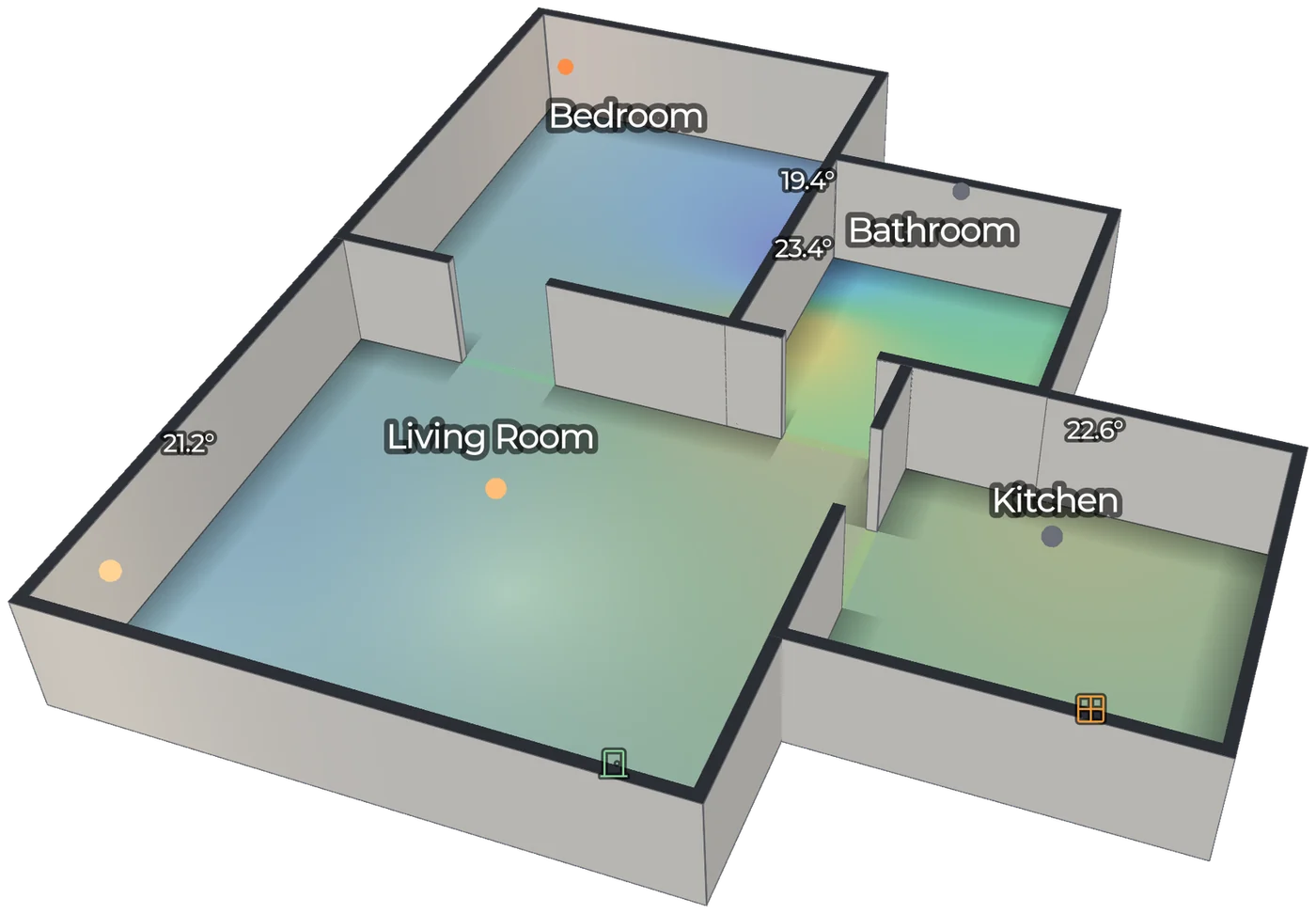
Zoomed in, your house is shown as a dollhouse:
- every room has its own colour and its name, with walls cut away at 1.1 m so you can look inside, and door openings in the walls,
- lights are dots that light up the rooms around them in their colour and brightness. Click one to toggle the light,
- door and window sensors show whether they are open,
- temperature sensors show their reading.
Temperature and Humidity Maps
The Map View can colour the floors of your rooms by temperature or humidity, blended smoothly between all your sensors. Only sensors that you have placed in your rooms are used.
Turn a map on in the Map View's panel while it is zoomed into your rooms, or with the temperature and humidity buttons in the palm quick actions. The panel also has sliders for:
- Min and Max: the range of the colour scale. It starts at 16–30 °C for temperature and 20–80 % for humidity, the same scale as the floor plan cards in Home Assistant. Sensors in °F are converted.
- Opacity: how strongly the map tints the floors.
INFO
The maps need an internet connection the first time an area is shown. Map data comes from OpenFreeMap and AWS Terrain Tiles and is cached on the headset afterwards. Map data © OpenStreetMap contributors, © OpenMapTiles.