

Placing Devices
Once your rooms are set up, you can place widgets for your Home Assistant entities anywhere in them, for example a light switch next to the lamp it controls, or the weather next to your bed.
The Widgets Panel
Open the menu. It opens on the Widgets panel (the first button in the side bar).
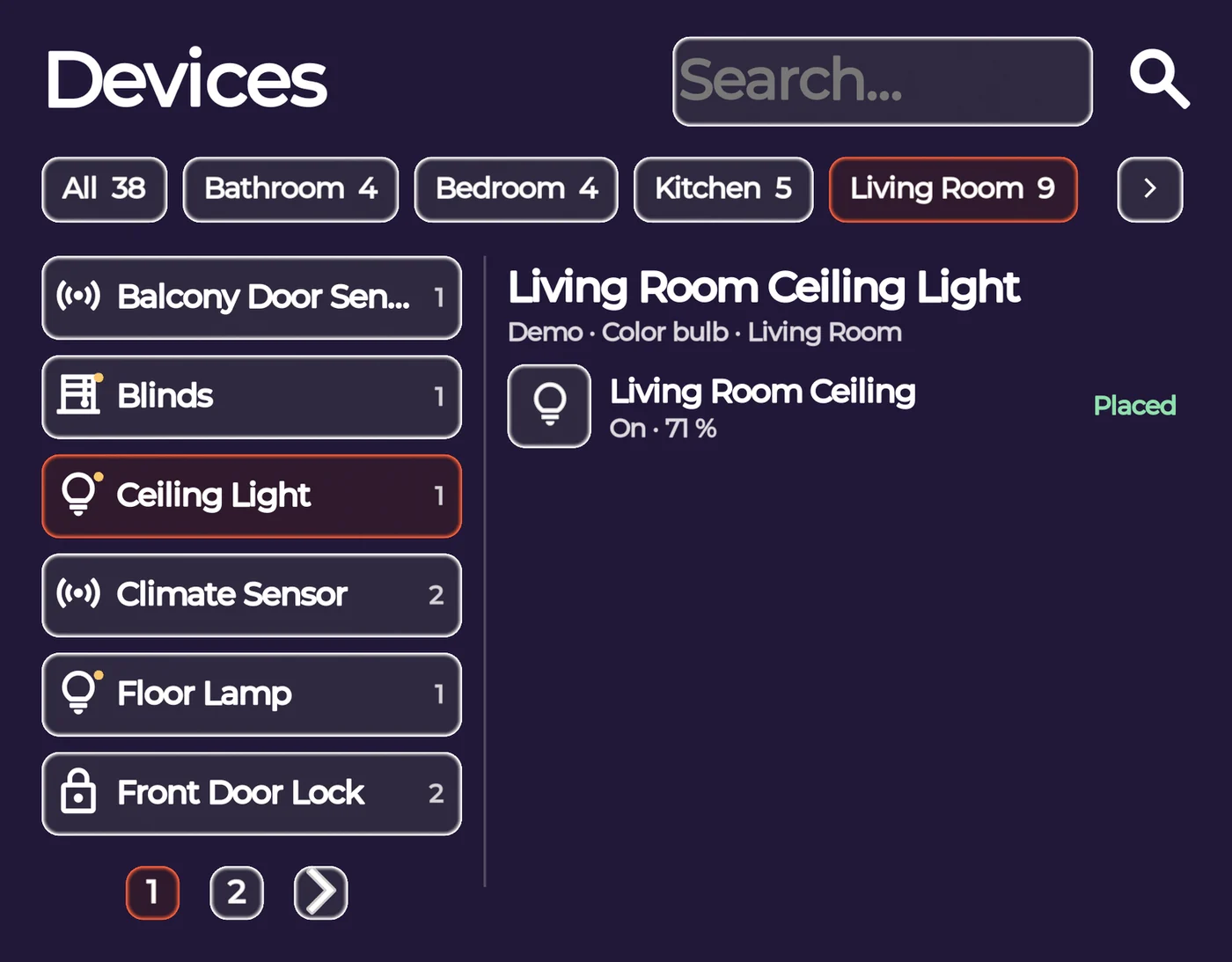
- Room chips at the top are built from your Home Assistant areas, plus All and No room. The panel opens on the room you are standing in.
- The device list shows each device with its type, the number of entities you can place, and a live on/off dot for lights, switches and media players.
- Select a device to see its entities with their live state. Entities that are already in your house show a Placed badge. Entities the app can't show yet are greyed out.
- The search field finds entities across all devices, word by word. For example "bed temp" finds "Bedroom Temperature".
Devices without any entity the app can show are hidden.
Placing an Entity
There are two ways to place an entity:
- Press Place on the entity. The widget appears next to the menu.
- Grab the entity row (grip button, or pinch your middle finger and thumb) to pull out a preview, move it to where you want it and let go. While you hold it, the thumbstick moves it closer or further away. The preview shows "Not in a room" while it is outside your rooms.
Entities can only be placed inside a room.
Moving and Removing Widgets
- Move a widget by grabbing it. While you hold it, push the thumbstick forward or back to move it away from you or closer.
- Remove a widget by grabbing it and dropping it into the trash bin that appears while you hold it.
- Settings: point at a widget with your left hand or controller. A settings button appears on your left hand; press it to open the widget's settings. Depending on the widget you can, for example, switch a camera between snapshots and video, change its refresh rate, or change the time range of a chart.
Supported Entities
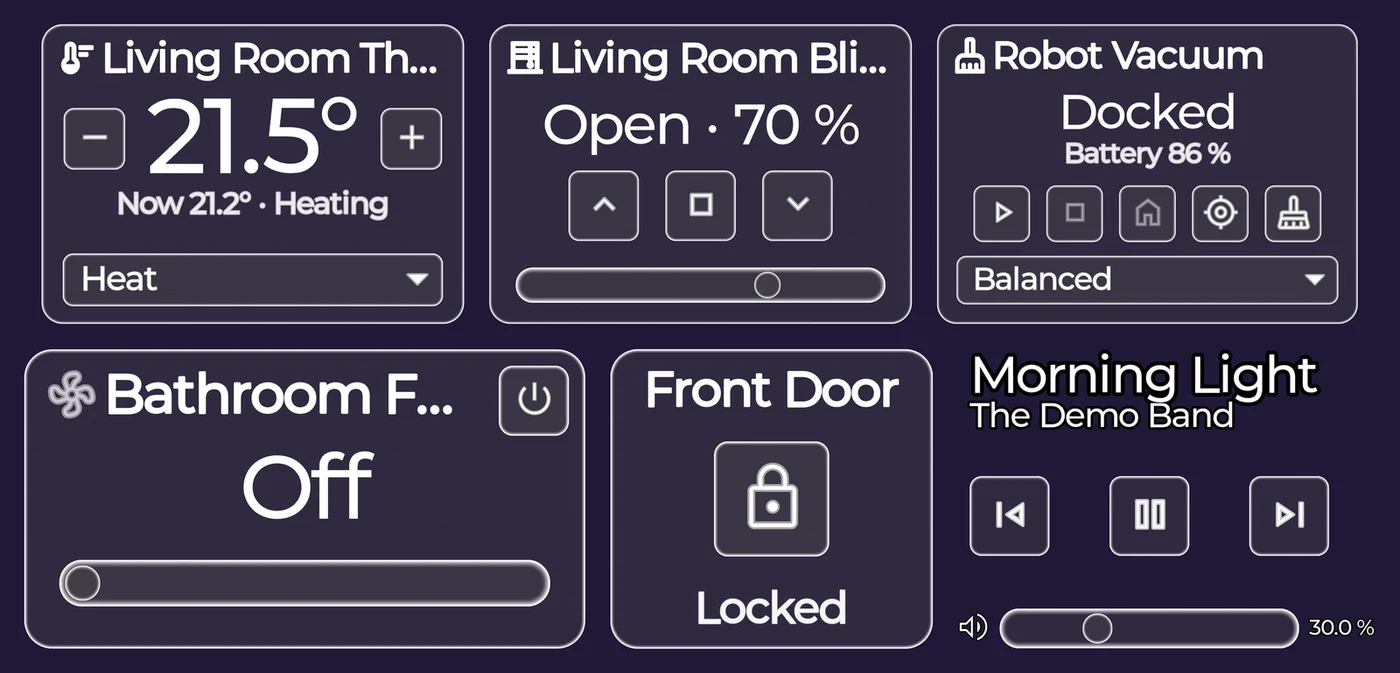
The app supports 40 Home Assistant domains. Widgets only show the controls a device supports, so a simple on/off light has no brightness slider.
| Widget | Domains |
|---|---|
| Light: on/off, brightness, color and color temperature. Touch the bulb with your finger to toggle it. | light |
| Switch | switch, input_boolean, automation |
| Button | button, input_button, scene, script |
| Number | number, input_number |
| Sensor | sensor, counter |
| Binary sensor | binary_sensor |
| Media player: title, artist, cover, volume and playback controls | media_player |
| Camera: snapshots or a video stream with an adjustable refresh rate | camera |
| Line chart of a sensor's history. Click a numeric sensor widget and press the chart button to add one. | sensor |
| Timer | timer |
| Weather forecast | weather |
| Climate: target temperature, current temperature and HVAC mode | climate |
| Water heater: target temperature and operation mode | water_heater |
| Humidifier: target humidity, power and mode | humidifier |
| Cover: open, stop, close and position | cover |
| Fan: power, speed, preset mode and oscillation | fan |
| Vacuum: start/pause, stop, return to dock, locate, spot clean, fan speed and battery | vacuum |
| Alarm panel: arm and disarm, with a code field when needed | alarm_control_panel |
| Lock | lock |
| Select (dropdown) | select, input_select |
| Text | text, input_text |
| Date and time | date, time, datetime |
| Update: installed and latest version, install or skip | update |
| To-do list | todo |
| Calendar: the current or next event | calendar |
| Person and device tracker: avatar, state and a 2D or 3D map | person, device_tracker |
| Display only | sun, zone, event, image, air_quality |
Known Limitations
- Locks that need a code can't be unlocked from the widget.
- To-do items can't be ticked off from the widget.
- The calendar shows one event, not a list.
- Maps on the person and device tracker widgets need an internet connection the first time an area is shown. Map data comes from OpenFreeMap and AWS Terrain Tiles.